Properties
Every document and folder carries the same set of properties, the Healdan profile. Select a document and open its Ext. Properties tab to see them. Its Properties tab shows the doc #, which can’t be edited, and the Date filed.
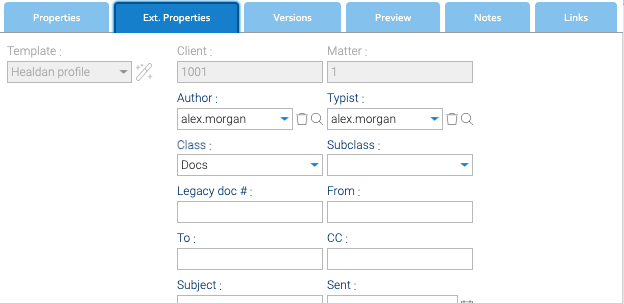
The Properties
| Property | What it holds |
|---|---|
| Client | the client’s number. Always the matter’s; can’t be changed |
| Matter | the matter’s number. Always the matter’s; can’t be changed |
| Author | who the document is by. You, unless you change it |
| Typist | who filed it, for filing on someone else’s behalf. You, unless you change it |
| Class | the kind of document, from a list your administrator keeps. Required; “Docs” unless something sets another |
| Subclass | a finer kind, from the chosen Class’s list. Optional |
| Legacy doc # | the document’s number in the system it came from, if it was moved in from one |
| From, To, CC, Subject, Sent, Received | an email’s details. See Emails |
Your administrator can add more properties.
Properties Pass Down
Client, matter, Class, Subclass and any properties your administrator adds pass down from a folder to the folders and documents inside it. A document filed in a folder whose Class is Invoices is an Invoice, without anyone setting it. Author, Typist, Legacy doc # and the email details belong to one document and don’t pass down.
Overriding a Property
To give a document or folder a value of its own, set it on that document or folder. It then stops following its folder for that property, and passes its own value down if it’s a folder.
- To follow the folder again, set the property back to the value it would inherit, or clear it.
- Client and Matter can’t be overridden. They always come from the matter.
- Changing the Class clears a Subclass that doesn’t belong to the new Class.