Signing In
Open the address your administrator gave you, and sign in with your user name and password.
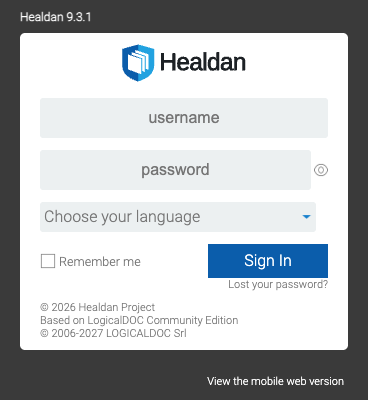
Healdan’s interface today is LogicalDOC’s, changed only as much as Healdan needs: its name and logo, the doc #,
matters and the search box. So some screens still look like LogicalDOC’s. A new Healdan interface comes later.
Your First Sign-In
Your administrator sets your user name and a first password. Change the password once you’re in, from your profile: see Your Profile and Password.
- Remember me saves your user name and password in this browser, and fills them in next time. Leave it unticked on a computer others use.
- Choose your language sets the language of Healdan’s screens. These docs describe them in English. In other languages, some of Healdan’s labels, such as Doc # and Date filed, still show LogicalDOC’s wording.
Signing Out
Use the power icon in the top bar, next to the help icon.
If You Can’t Sign In
- “The application has to be restarted” on the sign-in page means the server needs a restart. Tell your administrator.
- A page that looks out of date after Healdan was upgraded usually means your browser kept the old one. See Clearing Your Browser’s Cache.
- A forgotten password: Lost your password? under the Sign In button resets it by email, if your install can send email. Otherwise your administrator can reset it.