Getting Around
The Top Bar
- Account has your profile and password. Tools has a few utilities.
- The help icon opens a Support menu, and the power icon signs you out.
- The search box is on the right, with its scope picker beside it. See Searching.
The Tabs
- Dashboard: the documents you have checked out or locked, and your tags and messages.
- Documents: the matters and their documents. You’ll spend most of your time here.
- Search: the results of a search, and a form for more detailed searches.
Administrators also see an Administration tab.
The Documents Tab
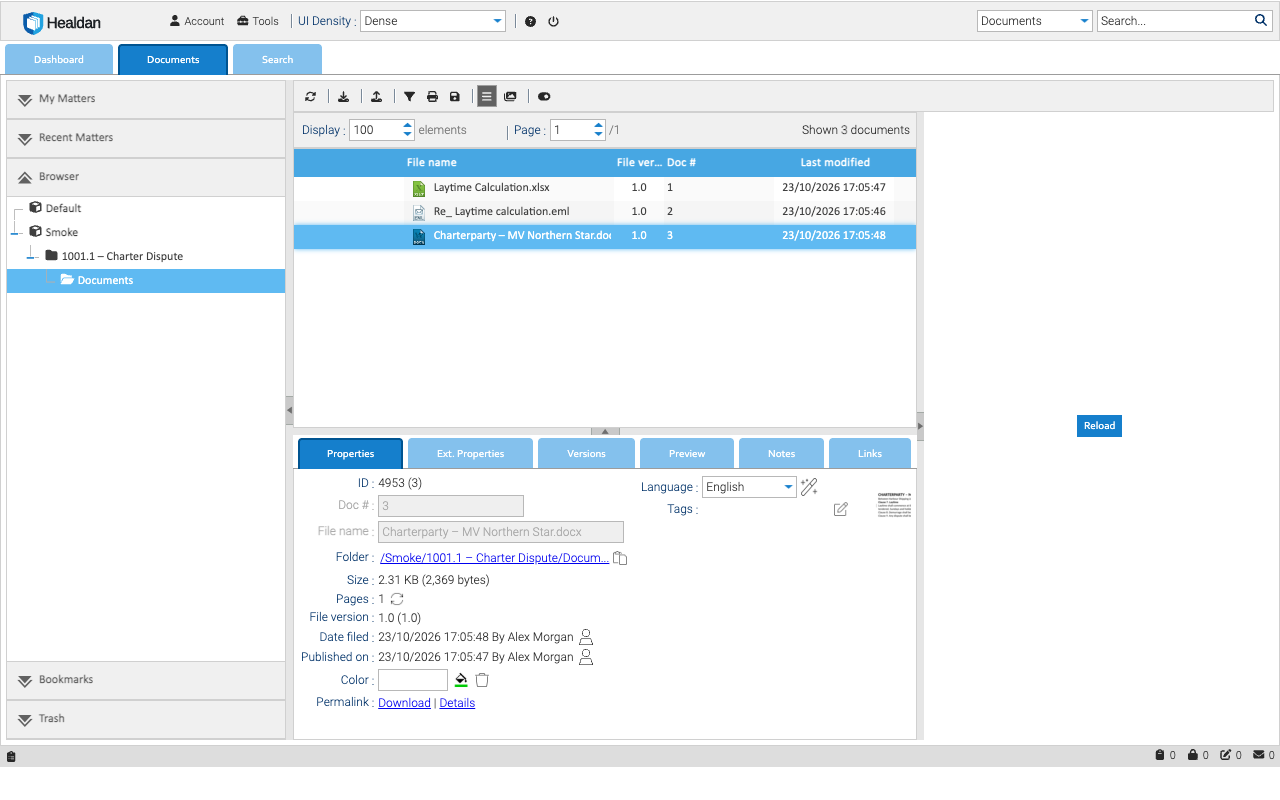
The left pane has five sections. One is open at a time: click a section’s title to open it.
- My Matters: the matters you’ve chosen to keep at hand.
- Recent Matters: the matters you’ve worked in lately.
- Browser: the folder tree, with the Stores you can see at the top and their matters inside them.
- Bookmarks: documents and folders you’ve bookmarked. Your My Matters are kept as bookmarks, so they show here too.
- Trash: things you’ve deleted, until they’re emptied.
My Matters and Recent Matters explains the first two.
The list in the middle shows the open folder’s documents: each one’s file name, file version, doc #, when it was last changed, its size, Author and Class. Scroll sideways for the last columns. The toolbar above it has the upload button, among others.
The details under the list show the selected document:
| Tab | What it shows |
|---|---|
| Properties | its doc #, file name, folder, size, version, Date filed, and a thumbnail |
| Ext. Properties | its client, matter, Author, Class and the rest of its properties |
| Versions | its versions and snapshots |
| Preview | a preview of the document |
| Notes, Links | notes on the document, and links to other documents |
More tabs appear when you have the permissions for them, such as Security.
The right-hand panel can show a preview of the selected document too. If it shows a Reload button, as in the picture, click it.